BookZero API: Upload Receipts & Import Transactions Programmatically (Developer Guide)
Complete developer guide to the BookZero Public API. Upload receipts, import transaction CSVs, trigger AI extraction, and retrieve structured data via cURL, Python, N8n, or Zapier.
 Eric Tech·Mar 21, 2026·16 min read·
The BookZero API lets you upload receipts, import transaction CSVs, trigger AI extraction, and get back structured expense data -- all without touching the dashboard. This guide covers authentication, the full upload flow, transaction CSV import, and working examples for cURL, Python, N8n, and Zapier.
Explore all endpoints interactively at /docs/api -- try requests directly from your browser.
The Public API is available on all plans, including Free. Rate limits and file-per-request caps scale with your subscription tier. Generate your API key from Settings > API Keys in the BookZero dashboard.
Getting Your API Key
- Go to Settings > API Keys in the BookZero dashboard.
- Click Create API Key.
- Give it a name (e.g., "N8n Integration") and select scopes: read (poll job status) and write (upload receipts).
- Copy the key immediately -- it starts with
bkz_live_and is only shown once.
Store the key securely. Use environment variables, not hardcoded strings.
How It Works
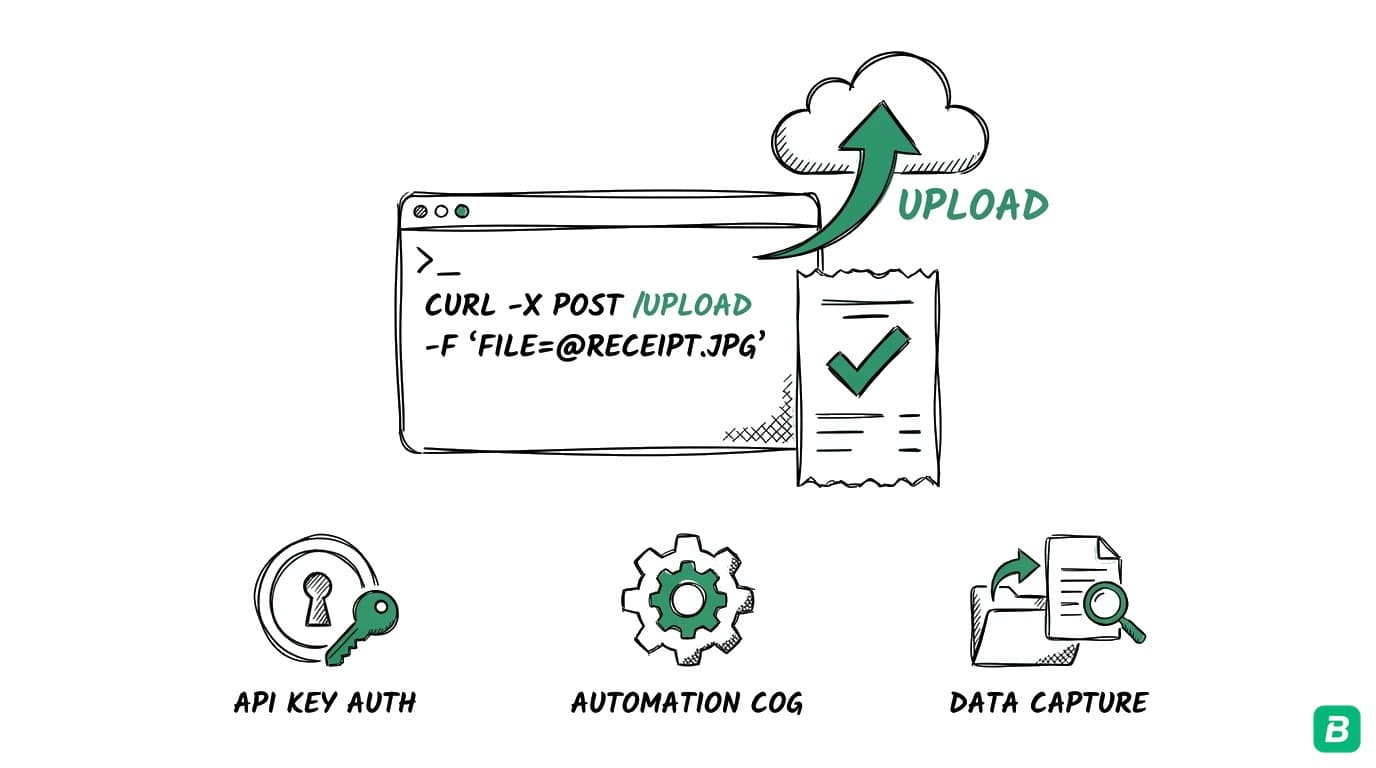
The upload flow has four steps:
1. POST /api/v1/receipts/upload-url   → Get presigned upload URLs
2. PUT  {presigned_url}               → Upload file(s) directly to storage
3. POST /api/v1/receipts/confirm      → Trigger AI processing
4. GET  /api/v1/jobs/{id}             → Poll until complete
Step 1 creates a job and returns presigned URLs (valid for 10 minutes). Step 2 uploads your files directly to storage -- no data passes through the BookZero API server. Step 3 tells BookZero all files are uploaded and kicks off AI extraction. Step 4 polls for results.
All write endpoints support the Idempotency-Key header. Send a unique key (UUID recommended) and if you accidentally retry the same request within 24 hours, you get the cached response instead of creating a duplicate job.
Quick Start: cURL
Step 1: Get Upload URL
curl -X POST https://bookzero.ai/api/v1/receipts/upload-url \
  -H "Authorization: Bearer bkz_live_YOUR_API_KEY" \
  -H "Content-Type: application/json" \
  -d '{
    "files": [
      {"file_name": "receipt.jpg", "content_type": "image/jpeg"}
    ]
  }'
Response (202 Accepted):
{
  "success": true,
  "data": {
    "job_id": "a1b2c3d4-e5f6-7890-abcd-ef1234567890",
    "uploads": [
      {
        "file_id": "f9e8d7c6-b5a4-3210-fedc-ba0987654321",
        "file_name": "receipt.jpg",
        "upload_url": "https://your-project.supabase.co/storage/v1/object/upload/sign/receipts/...",
        "expires_in": 600
      }
    ]
  }
}
You can upload multiple files in one request:
curl -X POST https://bookzero.ai/api/v1/receipts/upload-url \
  -H "Authorization: Bearer bkz_live_YOUR_API_KEY" \
  -H "Content-Type: application/json" \
  -d '{
    "files": [
      {"file_name": "lunch.jpg", "content_type": "image/jpeg"},
      {"file_name": "office-supplies.png", "content_type": "image/png"},
      {"file_name": "invoice.pdf", "content_type": "application/pdf"}
    ]
  }'
Step 2: Upload File to Presigned URL
curl -X PUT "PRESIGNED_UPLOAD_URL_FROM_STEP_1" \
  -H "Content-Type: image/jpeg" \
  --data-binary @receipt.jpg
This uploads directly to Supabase Storage. Repeat for each file in a batch upload.
Step 3: Confirm the Job
curl -X POST https://bookzero.ai/api/v1/receipts/confirm \
  -H "Authorization: Bearer bkz_live_YOUR_API_KEY" \
  -H "Content-Type: application/json" \
  -d '{"job_id": "a1b2c3d4-e5f6-7890-abcd-ef1234567890"}'
Response (202 Accepted):
{
  "success": true,
  "data": {
    "job_id": "a1b2c3d4-e5f6-7890-abcd-ef1234567890",
    "status": "queued",
    "file_count": 1
  }
}
The confirm endpoint verifies that all files exist in storage before accepting the job. If any files are missing, you will get a 400 error listing which files have not been uploaded yet.
Step 4: Poll for Results
curl https://bookzero.ai/api/v1/jobs/a1b2c3d4-e5f6-7890-abcd-ef1234567890 \
  -H "Authorization: Bearer bkz_live_YOUR_API_KEY"
Response (200 OK) -- while processing:
{
  "success": true,
  "data": {
    "job_id": "a1b2c3d4-e5f6-7890-abcd-ef1234567890",
    "status": "processing",
    "progress": 50,
    "total_files": 1,
    "processed_files": 0,
    "successful_files": 0,
    "failed_files": 0,
    "credits_used": 0,
    "created_at": "2026-03-21T10:00:00.000Z",
    "completed_at": null,
    "files": [
      {
        "file_id": "f9e8d7c6-b5a4-3210-fedc-ba0987654321",
        "file_name": "receipt.jpg",
        "status": "processing",
        "error_message": null,
        "receipt_id": null,
        "receipt": null,
        "created_at": "2026-03-21T10:00:00.000Z",
        "processing_started_at": "2026-03-21T10:00:05.000Z",
        "processing_completed_at": null
      }
    ]
  }
}
Response -- when complete:
{
  "success": true,
  "data": {
    "job_id": "a1b2c3d4-e5f6-7890-abcd-ef1234567890",
    "status": "completed",
    "progress": 100,
    "total_files": 1,
    "processed_files": 1,
    "successful_files": 1,
    "failed_files": 0,
    "credits_used": 1,
    "created_at": "2026-03-21T10:00:00.000Z",
    "completed_at": "2026-03-21T10:00:12.000Z",
    "files": [
      {
        "file_id": "f9e8d7c6-b5a4-3210-fedc-ba0987654321",
        "file_name": "receipt.jpg",
        "status": "completed",
        "error_message": null,
        "receipt_id": "11223344-5566-7788-99aa-bbccddeeff00",
        "receipt": {
          "receipt_id": "11223344-5566-7788-99aa-bbccddeeff00",
          "vendor": "Staples",
          "total_amount": 47.82,
          "currency": "CAD",
          "invoice_date": "2026-03-20",
          "category": "Office expenses",
          "description": "Printer paper, pens, binder clips",
          "payment_method": "Visa",
          "tax_amount": 6.22
        },
        "created_at": "2026-03-21T10:00:00.000Z",
        "processing_started_at": "2026-03-21T10:00:05.000Z",
        "processing_completed_at": "2026-03-21T10:00:12.000Z"
      }
    ]
  }
}
Poll every 3-5 seconds. Terminal statuses are: completed, completed_with_errors, failed.
Endpoint Reference
POST /api/v1/receipts/upload-url
Creates an import job and returns presigned upload URLs.
Headers:
| Header | Required | Description |
|---|---|---|
Authorization | Yes | Bearer bkz_live_... |
Content-Type | Yes | application/json |
Idempotency-Key | No | Unique string (max 255 chars). Deduplicates retries for 24h. |
Request body:
| Field | Type | Required | Description |
|---|---|---|---|
files | array | Yes | 1 or more file objects |
files[].file_name | string | Yes | File name (max 255 chars) |
files[].content_type | string | Yes | MIME type. Allowed: image/jpeg, image/png, image/gif, image/webp, image/heic, image/heif, application/pdf |
Response fields (data):
| Field | Type | Description |
|---|---|---|
job_id | string (UUID) | The import job ID. Use this for confirm and poll. |
uploads | array | One entry per file |
uploads[].file_id | string (UUID) | The file ID |
uploads[].file_name | string | The file name you provided |
uploads[].upload_url | string | Presigned PUT URL. Upload your file here. |
uploads[].expires_in | number | URL expiry in seconds (600 = 10 minutes) |
POST /api/v1/receipts/confirm
Confirms all files are uploaded and triggers AI processing.
Headers: Same as upload-url (Authorization, Content-Type, optional Idempotency-Key).
Request body:
| Field | Type | Required | Description |
|---|---|---|---|
job_id | string (UUID) | Yes | The job ID from upload-url |
Response fields (data):
| Field | Type | Description |
|---|---|---|
job_id | string (UUID) | The confirmed job ID |
status | string | Always "queued" on success |
file_count | number | Number of files queued for processing |
GET /api/v1/jobs/:id
Returns job status and extracted receipt data for completed files.
Headers:
| Header | Required | Description |
|---|---|---|
Authorization | Yes | Bearer bkz_live_... |
Response fields (data):
| Field | Type | Description |
|---|---|---|
job_id | string | Job ID |
status | string | pending, queued, processing, completed, completed_with_errors, failed |
progress | number | 0-100 percentage |
total_files | number | Total files in the job |
processed_files | number | Files processed so far |
successful_files | number | Files that extracted successfully |
failed_files | number | Files that failed extraction |
credits_used | number | Credits consumed by this job |
created_at | string | ISO 8601 timestamp |
completed_at | string or null | ISO 8601 timestamp when job finished |
files | array | Per-file status and results |
File object fields:
| Field | Type | Description |
|---|---|---|
file_id | string | File ID |
file_name | string | Original file name |
status | string | pending, processing, completed, failed, skipped |
error_message | string or null | Error details (only when status is failed) |
receipt_id | string or null | The created receipt ID (when completed) |
receipt | object or null | Extracted receipt data (see below) |
Receipt object fields:
| Field | Type | Description |
|---|---|---|
receipt_id | string | Receipt ID in BookZero |
vendor | string or null | Vendor/merchant name |
total_amount | number or null | Total amount |
currency | string | Currency code (e.g., "CAD") |
invoice_date | string or null | Date on the receipt (YYYY-MM-DD) |
category | string or null | CRA T2125 expense category |
description | string or null | AI-generated description of items |
payment_method | string or null | Payment method (e.g., "Visa") |
tax_amount | number or null | Tax amount extracted |
Use Case: N8n Workflow
Build a receipt automation pipeline in N8n with six nodes:
- Trigger -- Webhook, Schedule, or Gmail trigger when you receive a receipt email.
- HTTP Request --
POST /api/v1/receipts/upload-urlwith the file name and content type. Set Authorization header toBearer {{ $env.BOOKZERO_API_KEY }}. - HTTP Request --
PUTto theupload_urlfrom Step 2. Set binary body to the file content andContent-Typeto match. - HTTP Request --
POST /api/v1/receipts/confirmwith thejob_idfrom Step 2. - Wait -- 5 seconds, then HTTP Request to
GET /api/v1/jobs/{{ job_id }}. Use an IF node: ifstatusiscompletedorfailed, continue. Otherwise, loop back to Wait. - Done -- Route the extracted receipt data to Google Sheets, Slack, Notion, or your accounting system.
The key configuration for each HTTP Request node:
Node 2 (Upload URL):
  Method: POST
  URL: https://bookzero.ai/api/v1/receipts/upload-url
  Headers: Authorization = Bearer {{ $env.BOOKZERO_API_KEY }}
  Body (JSON): {"files": [{"file_name": "receipt.jpg", "content_type": "image/jpeg"}]}

Node 3 (Upload File):
  Method: PUT
  URL: {{ $node["Upload URL"].json.data.uploads[0].upload_url }}
  Headers: Content-Type = image/jpeg
  Body: Binary (file content)

Node 4 (Confirm):
  Method: POST
  URL: https://bookzero.ai/api/v1/receipts/confirm
  Headers: Authorization = Bearer {{ $env.BOOKZERO_API_KEY }}
  Body (JSON): {"job_id": "{{ $node["Upload URL"].json.data.job_id }}"}

Node 5 (Poll):
  Method: GET
  URL: https://bookzero.ai/api/v1/jobs/{{ $node["Upload URL"].json.data.job_id }}
  Headers: Authorization = Bearer {{ $env.BOOKZERO_API_KEY }}
Use Case: Zapier
Zapier does not support polling loops natively, so use the Delay step:
- Trigger -- "Webhooks by Zapier" (Catch Hook) or "Email by Zapier" when you receive a receipt.
- Webhooks by Zapier (POST) -- Call
/api/v1/receipts/upload-urlwith file details. - Webhooks by Zapier (PUT) -- Upload the file to the presigned URL.
- Webhooks by Zapier (POST) -- Call
/api/v1/receipts/confirmwith the job ID. - Delay by Zapier -- Wait 15 seconds (receipts typically process in 5-12 seconds).
- Webhooks by Zapier (GET) -- Call
/api/v1/jobs/{job_id}to get results. - Formatter by Zapier -- Extract vendor, amount, category, and date from the response.
- Action -- Send to Google Sheets, QuickBooks, Slack, or your destination.
For the Authorization header in each webhook step, use: Bearer YOUR_API_KEY (store the key in Zapier's Storage or as a secret).
15 seconds is a safe default. If you are uploading multiple files in a batch, increase the delay to 30 seconds. You can also add a second poll step with a Paths action: if status is not terminal, wait another 15 seconds and poll again.
Use Case: Python AI Agent
A script that watches a folder for new receipts, uploads them, and prints the extracted data:
import requests
import time
import os
import sys

API_KEY = os.getenv("BOOKZERO_API_KEY")
BASE = "https://bookzero.ai/api/v1"
HEADERS = {"Authorization": f"Bearer {API_KEY}"}

CONTENT_TYPES = {
    "jpg": "image/jpeg",
    "jpeg": "image/jpeg",
    "png": "image/png",
    "gif": "image/gif",
    "webp": "image/webp",
    "heic": "image/heic",
    "pdf": "application/pdf",
}


def upload_receipt(file_path):
    name = os.path.basename(file_path)
    ext = name.rsplit(".", 1)[-1].lower()
    content_type = CONTENT_TYPES.get(ext, "image/jpeg")

    # Step 1: Get upload URL
    resp = requests.post(
        f"{BASE}/receipts/upload-url",
        json={"files": [{"file_name": name, "content_type": content_type}]},
        headers=HEADERS,
    )
    resp.raise_for_status()
    data = resp.json()["data"]
    job_id = data["job_id"]
    upload_url = data["uploads"][0]["upload_url"]

    # Step 2: Upload file to presigned URL
    with open(file_path, "rb") as f:
        put_resp = requests.put(upload_url, data=f, headers={"Content-Type": content_type})
        put_resp.raise_for_status()

    # Step 3: Confirm the job
    confirm_resp = requests.post(
        f"{BASE}/receipts/confirm",
        json={"job_id": job_id},
        headers=HEADERS,
    )
    confirm_resp.raise_for_status()

    # Step 4: Poll until terminal status
    while True:
        poll_resp = requests.get(f"{BASE}/jobs/{job_id}", headers=HEADERS)
        poll_resp.raise_for_status()
        job = poll_resp.json()["data"]

        if job["status"] in ("completed", "failed", "completed_with_errors"):
            return job

        time.sleep(3)


if __name__ == "__main__":
    if len(sys.argv) < 2:
        print("Usage: python upload_receipt.py <file_path>")
        sys.exit(1)

    result = upload_receipt(sys.argv[1])

    print(f"Job status: {result['status']}")
    for f in result["files"]:
        if f["receipt"]:
            r = f["receipt"]
            print(f"  {f['file_name']}: {r['vendor']} - ${r['total_amount']} {r['currency']} ({r['category']})")
        elif f["status"] == "failed":
            print(f"  {f['file_name']}: FAILED - {f['error_message']}")
Run it:
export BOOKZERO_API_KEY="bkz_live_your_key_here"
python upload_receipt.py receipt.jpg
For a folder-watching agent, wrap the upload_receipt function with Python's watchdog library:
from watchdog.observers import Observer
from watchdog.events import FileSystemEventHandler

class ReceiptHandler(FileSystemEventHandler):
    def on_created(self, event):
        if event.is_directory:
            return
        ext = event.src_path.rsplit(".", 1)[-1].lower()
        if ext in CONTENT_TYPES:
            print(f"New receipt: {event.src_path}")
            result = upload_receipt(event.src_path)
            for f in result["files"]:
                if f["receipt"]:
                    r = f["receipt"]
                    print(f"  Extracted: {r['vendor']} ${r['total_amount']}")

observer = Observer()
observer.schedule(ReceiptHandler(), path="./receipts", recursive=False)
observer.start()
print("Watching ./receipts for new files...")
observer.join()
Transaction CSV Import
In addition to receipt uploads, the API supports importing bank transaction CSVs. Unlike receipts (which use async AI extraction), transaction CSVs are processed synchronously -- you get results immediately in the confirm response.
How It Works
1. POST /api/v1/transactions/upload-url  → Get presigned upload URL (CSV only)
2. PUT  {presigned_url}                  → Upload CSV directly to storage
3. POST /api/v1/transactions/confirm     → Process CSV with column mapping (synchronous)
Step 1 accepts a single CSV file (not a batch). Step 3 is where the magic happens: you provide a column mapping that tells BookZero which CSV columns correspond to transaction date, description, amount, and optionally card last 4 digits and category. The CSV is parsed, transactions are inserted, and auto-matching against your receipts runs immediately.
Step 1: Get Upload URL for CSV
curl -X POST https://bookzero.ai/api/v1/transactions/upload-url \
  -H "Authorization: Bearer bkz_live_YOUR_API_KEY" \
  -H "Content-Type: application/json" \
  -d '{
    "file_name": "march-statement.csv",
    "content_type": "text/csv"
  }'
Response (202 Accepted):
{
  "success": true,
  "data": {
    "job_id": "b2c3d4e5-f6a7-8901-bcde-f23456789012",
    "upload": {
      "file_id": "c3d4e5f6-a7b8-9012-cdef-345678901234",
      "file_name": "march-statement.csv",
      "upload_url": "https://your-project.supabase.co/storage/v1/object/upload/sign/statements/...",
      "expires_in": 600
    }
  }
}
Note: the response has a singular upload object (not an uploads array) since transaction imports are always single-file.
Step 2: Upload the CSV
curl -X PUT "PRESIGNED_UPLOAD_URL_FROM_STEP_1" \
  -H "Content-Type: text/csv" \
  --data-binary @march-statement.csv
Step 3: Confirm with Column Mapping
curl -X POST https://bookzero.ai/api/v1/transactions/confirm \
  -H "Authorization: Bearer bkz_live_YOUR_API_KEY" \
  -H "Content-Type: application/json" \
  -d '{
    "job_id": "b2c3d4e5-f6a7-8901-bcde-f23456789012",
    "mapping": {
      "transaction_date": "Date",
      "description": "Description",
      "amount": "Amount",
      "card_last4": "Card Number"
    },
    "sign_conversion": "convert_to_expenses"
  }'
The mapping object tells BookZero which CSV column headers map to which fields:
| Field | Required | Description |
|---|---|---|
transaction_date | Yes | CSV column header for the transaction date |
description | Yes | CSV column header for the description/memo |
amount | Yes | CSV column header for the amount |
card_last4 | No | CSV column header for the card last 4 digits |
category | No | CSV column header for the expense category |
The optional sign_conversion field handles banks that report expenses as positive numbers:
"convert_to_expenses"-- flips positive amounts to negative (expenses)"keep_as_income"-- keeps amounts as-is
Response (200 OK -- synchronous, not 202):
{
  "success": true,
  "data": {
    "job_id": "b2c3d4e5-f6a7-8901-bcde-f23456789012",
    "status": "completed",
    "transaction_count": 142,
    "matched_count": 23,
    "credits_used": 1,
    "transactions": [
      {
        "transaction_id": "d4e5f6a7-b8c9-0123-def0-456789012345",
        "description": "UBER EATS",
        "amount": -24.99,
        "transaction_date": "2026-03-01",
        "category": null,
        "card_last4": "4242"
      }
    ]
  }
}
The transactions array is capped at 100 entries in the response. Use GET /api/v1/jobs/{id} to retrieve the full job details.
Transaction CSV imports cost 1 credit per file, regardless of how many rows the CSV contains. This is much more efficient than receipt uploads (1 credit per receipt).
Error Handling
All error responses follow the same shape:
{
  "success": false,
  "error": {
    "code": "ERROR_CODE",
    "message": "Human-readable description"
  }
}
| Code | HTTP Status | Meaning | What to Do |
|---|---|---|---|
UNAUTHORIZED | 401 | Invalid, expired, or revoked API key | Check your key. Regenerate if needed. |
FORBIDDEN | 403 | API key lacks the required scope | Recreate the key with read and write scopes. |
VALIDATION_ERROR | 400 | Invalid request body or parameters | Check the error message for which field failed. |
INSUFFICIENT_CREDITS | 402 | Not enough credits for this upload | Top up credits or wait for your billing period to reset. |
CONFLICT | 409 | Max concurrent jobs reached (3) or job already confirmed | Wait for active jobs to finish before starting new ones. |
NOT_FOUND | 404 | Job ID does not exist or does not belong to your account | Verify the job ID. |
RATE_LIMITED | 429 | Too many requests in the current window | Back off and retry after the Retry-After header value (seconds). |
INTERNAL_ERROR | 500 | Server error | Retry with exponential backoff. If persistent, contact support. |
When rate limited, the response includes these headers:
| Header | Description |
|---|---|
X-RateLimit-Limit | Max requests allowed in the window |
X-RateLimit-Remaining | Requests remaining |
X-RateLimit-Reset | Unix timestamp (ms) when the window resets |
Retry-After | Seconds to wait before retrying |
Rate Limits
Rate limits are per API key, sliding window (1 minute), enforced by tier:
| Plan | Upload (req/min) | Confirm (req/min) | Poll (req/min) | Max Files per Request |
|---|---|---|---|---|
| Free | 5 | 5 | 30 | 10 |
| Solo | 20 | 20 | 60 | 50 |
| Growth | 50 | 50 | 120 | 100 |
| Team | 100 | 100 | 300 | 100 |
Concurrent active jobs are capped at 3 per account regardless of tier. A job counts as "active" while in pending, queued, or processing status.
FAQ
How long does processing take?
A single receipt typically processes in 5-12 seconds. Batch uploads (multiple files) process in parallel, so 10 files might take 15-20 seconds total. Poll every 3-5 seconds.
Does each file cost one credit?
Yes. Each receipt file consumes one credit when processing begins. Credits are checked at upload-url time, but deducted during processing. Failed extractions still consume credits.
What file formats are supported?
JPEG, PNG, GIF, WebP, HEIC, HEIF, and PDF. For best results, use clear photos with good lighting. PDFs can be multi-page but each PDF counts as one file/credit.
Can I upload bank statements through the API?
Yes! Use the transaction CSV import endpoints (/api/v1/transactions/upload-url and /api/v1/transactions/confirm). See the Transaction CSV Import section above.
What happens if my presigned URL expires?
Presigned URLs are valid for 10 minutes. If they expire, create a new job with another call to upload-url. The expired job will remain in pending status until it is automatically cleaned up.
Is the API available in sandbox/test mode?
Not currently. All API calls use live credentials and consume real credits. Use the Free plan for testing -- it includes monthly credits.
Can I delete receipts via the API?
Not in v1. Use the BookZero dashboard to manage receipts. Write endpoints for update/delete are planned for v2.
What categories does the AI use?
The AI categorizes receipts using CRA T2125 expense categories for Canadian accounts and IRS Schedule C categories for US accounts. Categories are set based on your business country setting.
Get your API key and start automating receipt uploads and transaction imports today


For the full interactive API reference with request/response examples, visit the API Documentation.

Eric Tech· Founder, BookZero.ai
Founder of BookZero. Building AI-powered bookkeeping tools for US and Canadian freelancers and small businesses.
View all postsStay ahead of tax season
Tax tips, deduction strategies, and feature announcements straight to your inbox. No spam, unsubscribe anytime.