Accounting automation software: A small business checklist
Choose accounting automation software with a trial checklist for capture, categorization, matching, reports, and accounting exports in Canada and the US.
 Eric Tech·Oct 20, 2026·6 min read·
Accounting automation software handles repeated work such as collecting purchase documents, entering expense details, matching payments, and moving reviewed records into reports or an accounting system. The right choice depends on which parts of that process your business needs help with.
A receipt tool, an expense-bookkeeping application, and a general ledger cover different jobs. Before comparing subscriptions, write down what you want to automate and where the finished records must go. That prevents buying a second tool that leaves the same manual handoff in place.
This checklist is for freelancers and small businesses in Canada and the US evaluating their expense workflow. For a walkthrough of the process itself, start with our bookkeeping automation guide.
Define the job before choosing software
List the tasks you perform during a normal month. Mark where you collect documents, enter data again, investigate missing receipts, or prepare files for someone else. Then name the system responsible for each final record.
For example, a consultant may use QuickBooks or Xero with their accountant but still gather receipts manually and type in purchase details. Their immediate need is document intake, categorization, and an expense handoff. Replacing the ledger would add work without necessarily fixing that problem.
Someone starting from a spreadsheet needs a different assessment. They should decide whether organized expense records and reports cover their current workflow, or whether they also need a ledger, invoicing, payroll, or other accounting functions. Check those requirements separately instead of assuming that every product described as automated accounting software includes them.
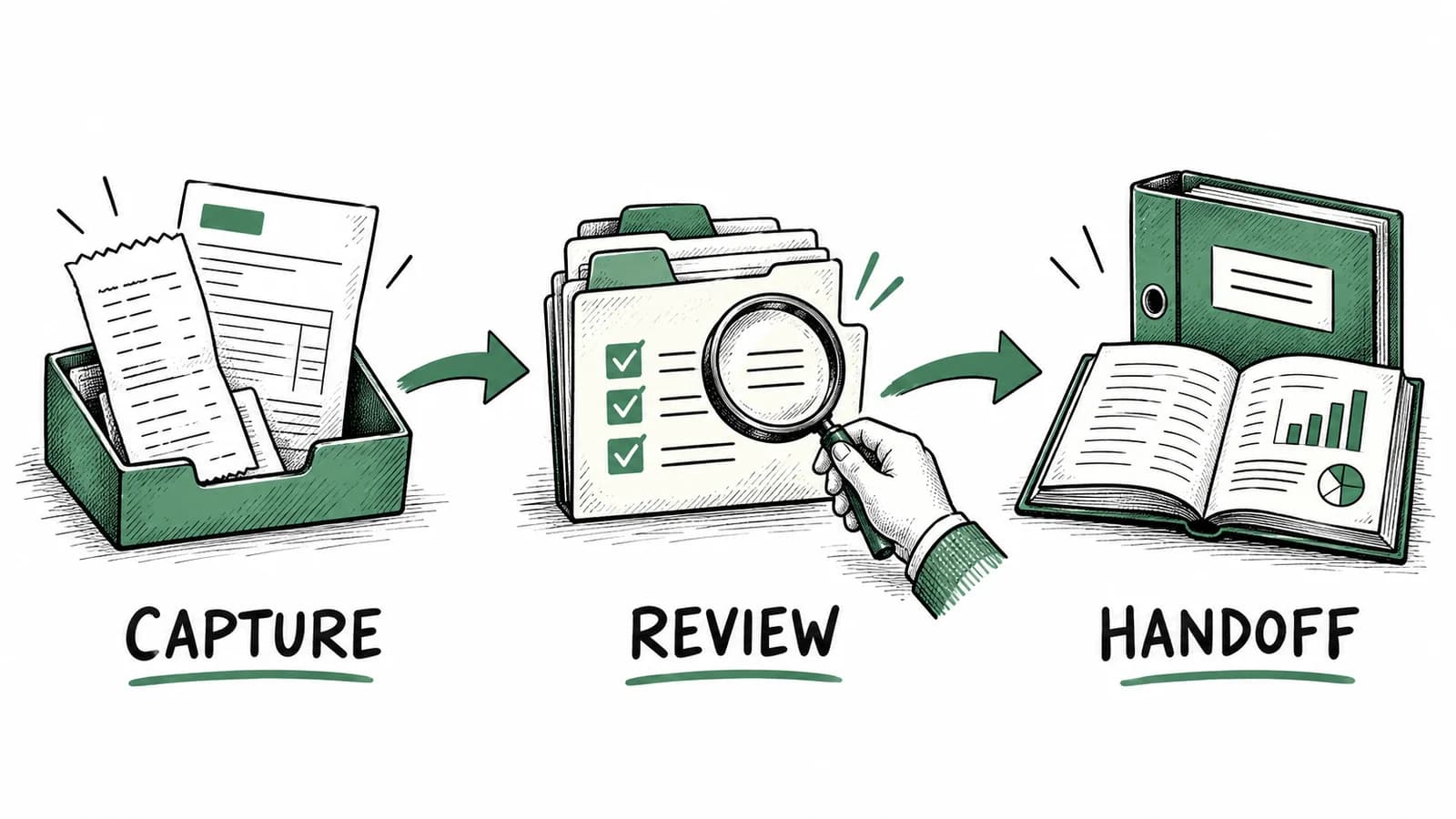
Draw a simple map before the trial: documents come in here, someone reviews them here, and the accepted records leave here. Include your accountant in that map. If both people expect the other to check a transfer or a failed export, the software cannot resolve that ownership gap.
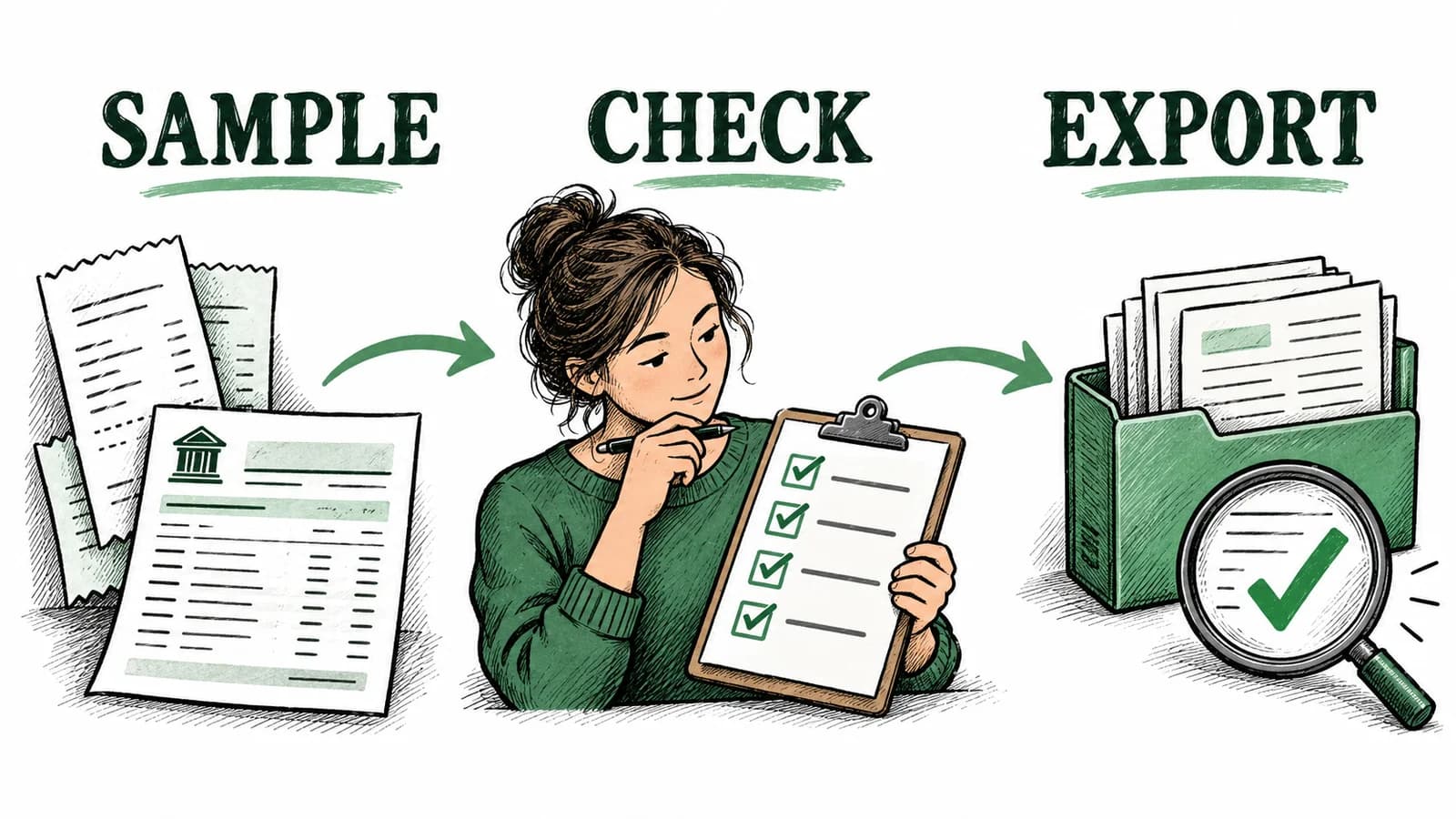
Run every trial with the same sample
Use a recent statement period you already understand. Select a manageable set of purchases and keep a reference list of the expected dates, amounts, and supporting documents. Include an ordinary receipt, a multi-page document, a refund, and a purchase whose business purpose needs explanation.
Try the following checks in every accounting automation tool you evaluate. Record the result and any manual repair needed. A feature checkbox does not tell you whether the output fits your business.
1. Test your actual document intake
Upload files in the formats you normally receive. If you collect receipts from a phone or shared folder, test that route too. Check that the entire document appears in the correct business and that you can find it again later.
2. Compare extraction with the source
Inspect dates, totals, taxes, and vendor details against your reference list. Include a document that is less tidy than a demo receipt. Find out how you correct an extracted field and whether the saved record shows the correction.
3. Check categories and business context
Use a purchase from a retailer that sells both personal and business goods. Check the proposed category against the items bought. Try correcting the classification and recording the business-use treatment your accountant expects. AI bookkeeping can assist with categorization; the business purpose still comes from you.
4. Inspect matching and unresolved records
Import the statement and inspect the suggested matches. Can you identify a payment whose receipt is missing? Can you distinguish a refund from income and an account transfer from a purchase? Check the workflow for correcting a mistaken match before processing a full month.
5. Send one reviewed output
Produce the report, CSV, or accounting export you actually intend to use. Ask the recipient to open it. Check that dates and amounts survive the handoff and that supporting documents are available where needed. Resolve column mapping and existing-entry questions before sending the rest.
For a connected accounting export, inspect the destination expense and its receipt attachment. If an entry already exists, confirm the documented handling before repeating the export. Record who checks failed or incomplete transfers.
Check Canada and US requirements explicitly
For a Canadian business, include a receipt with the tax details you regularly encounter. Inspect those fields in the record and the final report. Confirm that the software's country settings match your business and that your accountant accepts its category mapping.
For a US business, check the categories and expense documentation your tax preparer uses. If you buy from Canadian suppliers or pay in another currency, include that case in the trial and inspect how the output presents currency. Ask the provider about any conversion workflow you cannot verify yourself.
In either country, retain the supporting records behind the summary. The CRA recordkeeping guide and IRS recordkeeping guide explain why organized records matter. A successful software import does not settle a purchase's tax treatment.
Compare the ongoing workload and cost
Write down how many corrections the sample needed, which steps required help, and whether the recipient could use the result. Compare these observations with your current process. Use your own trial to estimate the remaining work instead of relying on a vendor's generic time-saving claim.
Review the current plan limits for document processing, statement imports, exports, and integrations. Include the cost of an accounting system you intend to keep. Check how you can retrieve your records if you change tools, and read the provider's current privacy and data-handling policies before uploading sensitive files.
Where BookZero fits
BookZero connects receipt intake, AI extraction and categorization, imported statement matching, and reporting. Its feature overview covers Google Drive and Telegram intake, CSV exports, and QuickBooks or Xero expense handoffs with receipt attachments.
That makes it a candidate when purchase records still need manual work before reaching your reports or your accountant's system. Evaluate any broader ledger, payroll, or filing requirements separately with the provider responsible for those jobs. Our AI bookkeeping guide explains the capture and categorization side in more detail.
Choose the product that passes your sample and fits the handoff you agreed with your accountant. Keep the trial checklist for onboarding so the first full month follows the same reviewed process.
Evaluate BookZero with your own receipts and statement workflow.



Eric Tech· Founder, BookZero.ai
Founder of BookZero. Building AI-powered bookkeeping tools for US and Canadian freelancers and small businesses.
View all postsStay ahead of tax season
Tax tips, deduction strategies, and feature announcements straight to your inbox. No spam, unsubscribe anytime.