Bank Statement Converter: PDF to Excel and CSV
Turn PDF bank statements into Excel or CSV, check the extracted transactions, and prepare a clean bookkeeping export with BookZero.
 Eric Tech·Oct 20, 2026·5 min read·
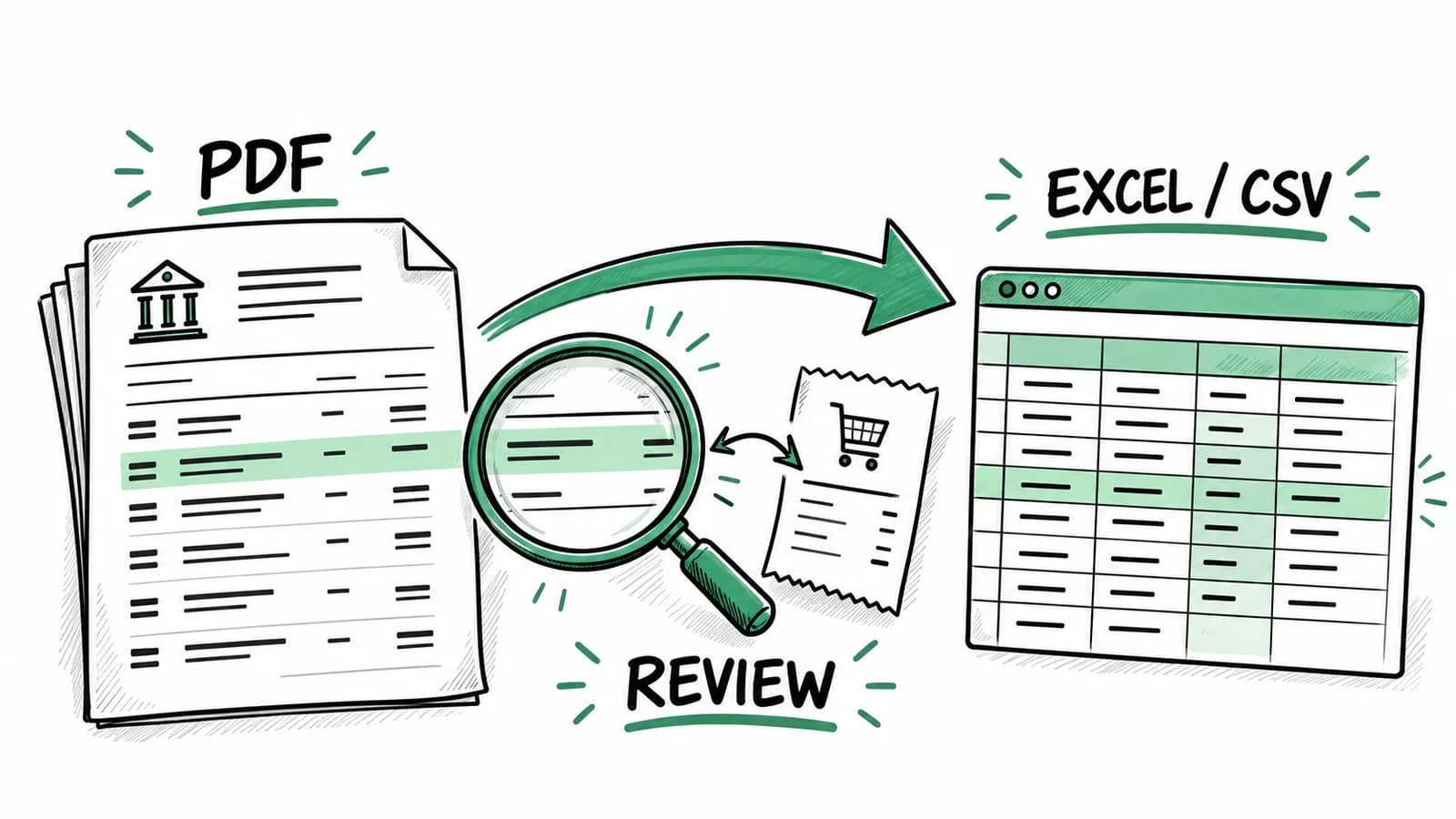
A bank statement converter turns the transaction rows in a PDF into data you can sort, review, and export. That is useful when your bank only provides older statements as PDFs, or when an accountant asks for a spreadsheet instead of a stack of monthly documents.
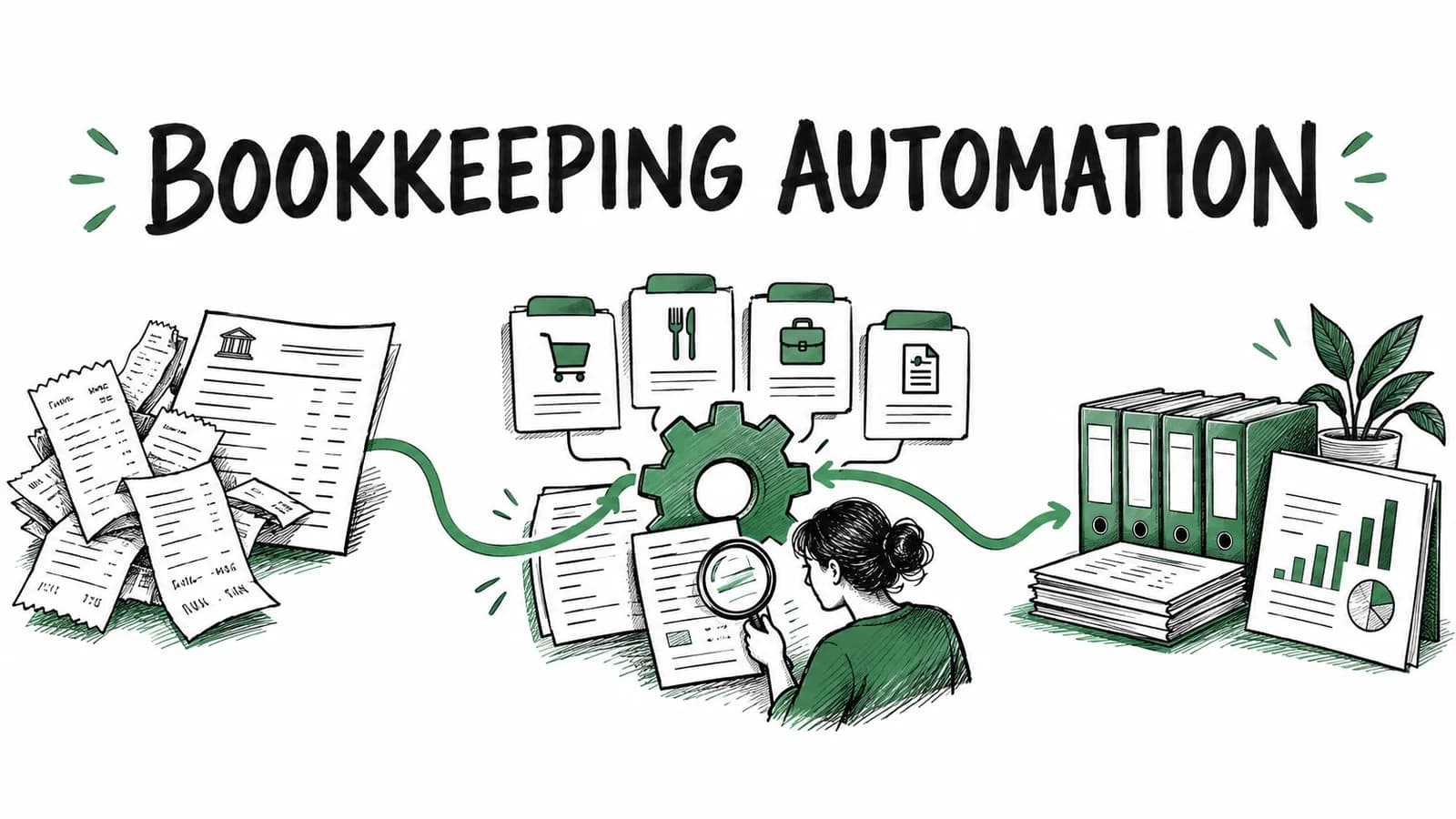
BookZero supports a bookkeeping workflow: import a statement into your account, review the extracted transactions, and export transaction data as Excel or CSV. You can also match those transactions to receipts. Access and usage depend on your plan. For a single statement, the free bank statement converter turns one PDF into Excel or CSV without an account.
Check whether you need conversion first
Start in your bank's download menu. If it already offers a CSV for the correct account and period, use that file. Converting the PDF creates an extra extraction step you can avoid. Keep the original statement alongside the downloaded data so you can check totals later.
A PDF bank statement to Excel workflow makes sense when you have historical documents, scanned statements, or a bank that does not provide the export you need. A statement screenshot with missing rows is a poor starting point. Use a complete, readable document and confirm it covers the account and dates you intended.
How to convert a statement with BookZero
1. Import one complete statement
Sign in, select the correct business, and upload the statement through the bank statement workflow. Start with one month before importing a large archive. That lets you check how your bank's descriptions, dates, and debit and credit columns appear after extraction.
Use the original PDF when available. Before uploading, check that every page is present and that transaction amounts are legible. If a document is password protected, follow your bank's process for obtaining a version you can upload securely.
2. Review the extracted rows
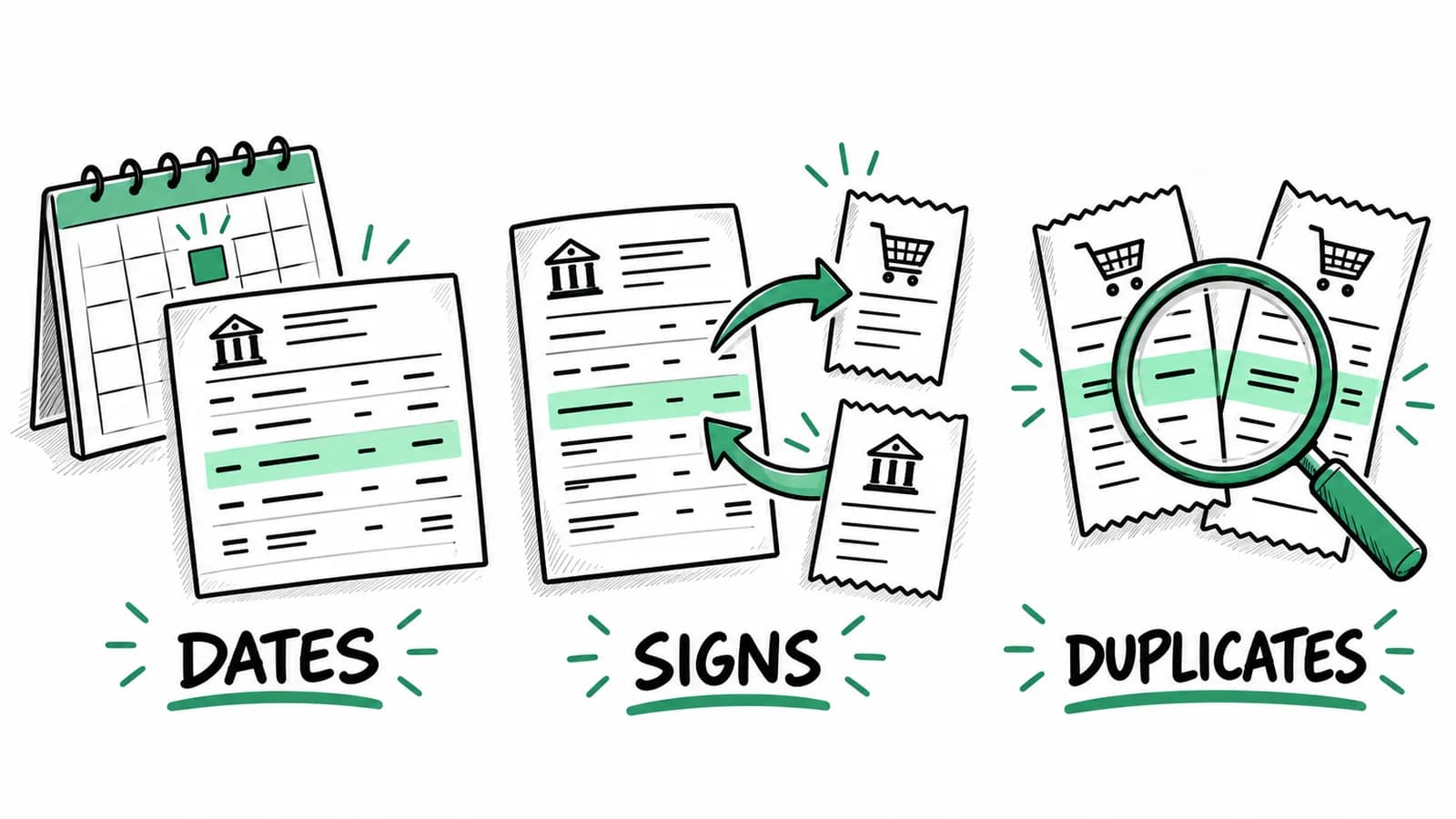
Compare the imported transactions with the statement itself. Pay particular attention to:
- The first and last transactions in the period.
- Money coming in versus money going out.
- Refunds, transfers, and credit card payments.
- Descriptions that wrap onto a second line.
- Dates that could be read as either day/month or month/day.
An extracted number can look plausible while carrying the wrong sign. A $240 supplier payment should not become $240 of income. Check more than whether the import finished.
3. Match receipts before your handoff
If the goal is bookkeeping, import the receipts for the same period and review BookZero's suggested receipt-to-transaction matches. A statement tells you that money moved; the receipt supplies the purchase detail. Unmatched transactions help you find documents that still need attention.
For example, a consultant might see a $126 charge from an office retailer. The statement description alone does not show whether it was printer ink or a personal purchase. Opening the receipt resolves that question before the transaction reaches an expense report.
4. Export the transactions
Use the transaction export dialog, choose the relevant filters and columns, then select CSV or Excel (.xlsx). Include the dates, descriptions, and amounts your accountant needs. Export limits and available features depend on your plan; check the current plans before processing a backlog.
Keep the original PDF and the reviewed export together. The spreadsheet is easier to analyze, while the statement remains the reference for checking the extracted data.
Excel or CSV: which should you choose?
Excel is convenient for reviewing a month with filters, totals, and notes in a workbook. CSV is useful when another system asks for a plain table. CSV does not preserve spreadsheet formatting or multiple worksheets, so ask the recipient what they need before you export.
Neither format makes two systems' column requirements identical. If an accountant or accounting package needs a particular date format or column order, compare a small sample with its import instructions. BookZero also offers QuickBooks and Xero export workflows, which may suit an ongoing accounting handoff better than moving files manually.
A practical conversion check
Imagine a statement that starts at $2,000, contains $900 of deposits and $650 of withdrawals, and ends at $2,250. As a manual check, $2,000 plus $900 minus $650 should equal $2,250. If the exported movements produce a different result, investigate missing rows, duplicate rows, or reversed signs before relying on the spreadsheet.
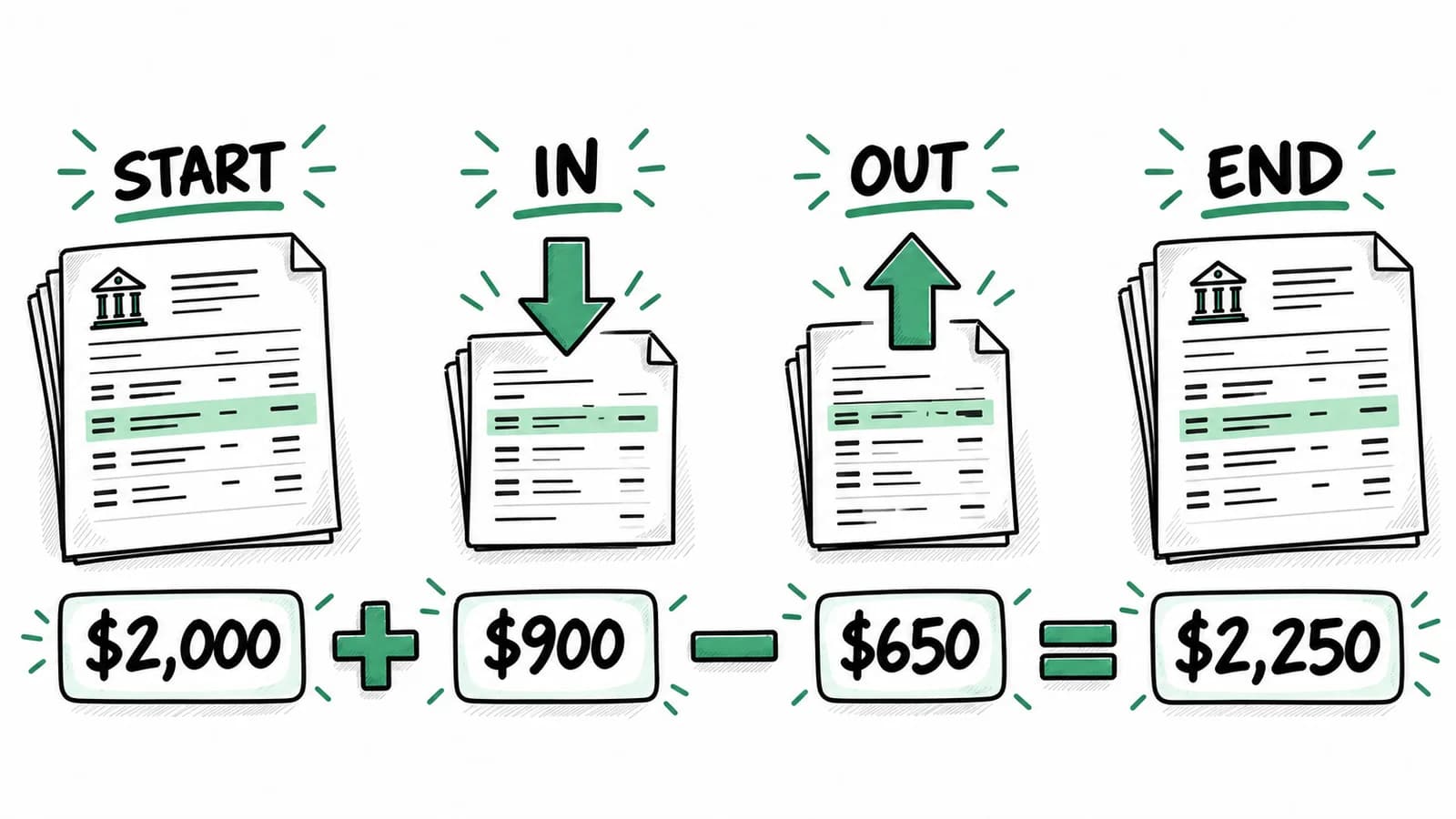
Also check account transfers. Moving $500 between your own accounts should not quietly become business revenue in one report and an operating expense in another. Conversion preserves transaction information; classification still needs review.
Choosing bank statement to Excel software
Test software with a statement you can verify yourself. Look for readable transaction descriptions, a review step, usable exports, and a way to retain source documents. If you also manage receipts, check whether the product can connect those documents to statement transactions.
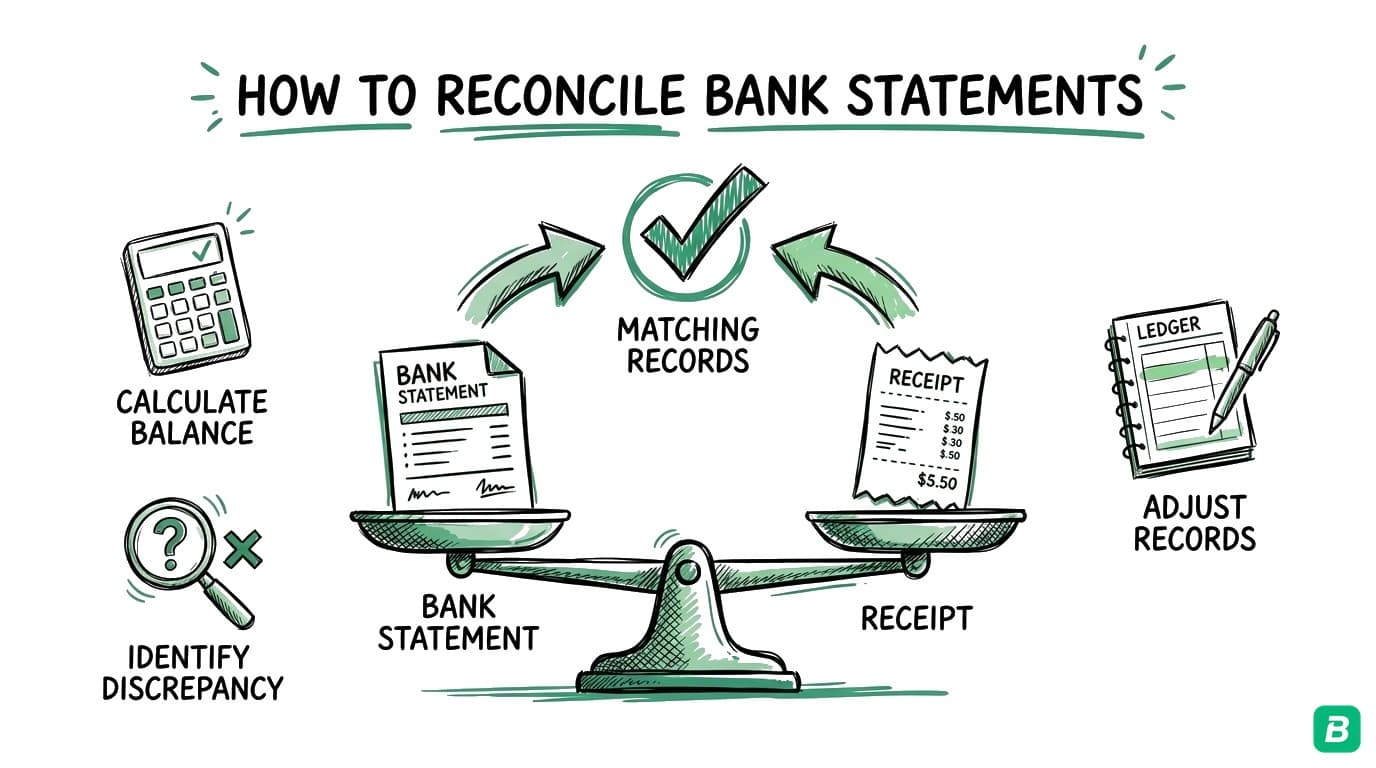
BookZero fits people who want conversion as part of expense bookkeeping. If you only need a single file in a different format, first check your bank's built-in downloads. If you need full balance reconciliation against a general ledger, use the ledger and your accountant's reconciliation process; receipt matching is one part of that work. Our monthly bank reconciliation guide explains the broader process.
Import a statement, review its transactions, and export the data with BookZero.



Eric Tech· Founder, BookZero.ai
Founder of BookZero. Building AI-powered bookkeeping tools for US and Canadian freelancers and small businesses.
View all postsStay ahead of tax season
Tax tips, deduction strategies, and feature announcements straight to your inbox. No spam, unsubscribe anytime.